pc-mobile-free tricks
Showing posts with label mobile tricks. Show all posts

Monday, 2 January 2017

05:32 | Posted in , by Unknown | 1 comment

HOW TO RUN ANDROID GAMES AND APPLICATIONS ON PC


Android is by far the best mobile operating system as it comes with a lot of amazing games and applications. Sometimes, we want to play that games on our PC but some of these apps and games which are available at Google Play Market are not available for Windows and Mac operating systems. So, what should one do??
Today, in this tutorial we are going to tell you how you can Run Android games and applications on PC. All you will need is a software which is known as Bluestacks.
Bluestacks in an Android emulator which will help us to Run Android games and applications on PC. You can have the perfect Android experience on your Windows and Mac Operating system using Bluestacks.

HOW TO INSTALL BLUESTACKS


Step 1: First of all you need to download BluestacksClick here to download Bluestacks for your Windows or Mac Operating systems.
Step 2: Once downloaded, install it using the executable file.  You will see a couple of steps in the installation wizard. Follow these steps and installation will be continued.
Once the installation is done, Bluestacks icon will be available on your desktop.

RUN ANDROID GAMES AND APPLICATIONS ON PC


Once you have downloaded and installed Bluestacks, the next thing you need to do is open Bluestacks and follow the steps mentioned below:-
Step 1: When you will run the Bluestacks for the first time you will be asked to insert your Google Account details. Insert the Google Account details so that, that account can be synced with Google Play market.
Step 2: Once your account is synced you are ready to go. Open the home of Bluestacks by clicking on Bluestacks icon and you will see a search field there. Type and name of app or game there.
Let me explain you this with the help of an example:- In the Search field enter “Whats App” (without quotes).
You will see What’s App on the homepage and will also see an Install Button present there. Click on Install button and the app will start downloading. The download time will take depending on your internet’s speed.

Step 3: Now open the app. When you will open the app for the first time you will be asked to enter your mobile number.  Provide correct mobile number as this number will get a verification code which will be used to authenticate your What’s app account.  Now you have verified the account you can easily use What’s app from your computer.
If you want to see which applications are installed on your system, you can open the “My Apps” area and see all the apps which are present on your system. Open the “Top Charts” section to see the apps which are being most downloaded by people on the Google Play market. You can even sync apps from your PC to your Android smartphone or from your Android smartphone to your PC using Cloud Connect.
Read More
05:03 | Posted in , by Unknown | No comments

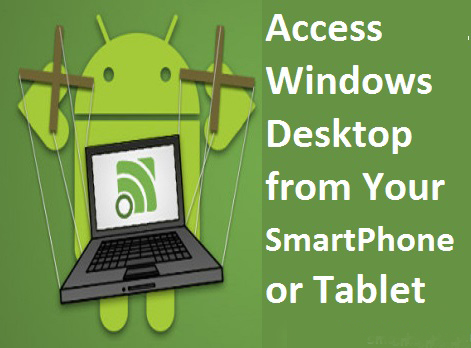
TRICK TO ACCESS A WINDOWS DESKTOP FROM YOUR SMARTPHONE OR TABLET


Yes,you can Access a Windows Desktop from Your SmartPhone or Tablet. IPads and android tablets or Smartphone can’t run windows app locally, but with this you can remote your windows desktop, even with a physical keyboard. Many apps has been developed and launched like Microsoft remote desktop appTeamViewer for Remote Control, among which Microsoft app is mostly used for professional use while the other app can also be used for personal uses.

MICROSOFT’S REMOTE DESKTOP APP 


This app has reduced the work load from one’s head of staying in the home and working all the day and cancelling the vacations and many more just because of the work info is available in your PC. With Microsoft remote desktop app, you can connect to your work resources and remote PC from anywhere you feel like working. This app is mostly used for business and professional use rather than the personal use.
Features of this app :
  • Access your desktop with your phones easily.
  • Rich multi-touch experience with remote desktop protocol (RDP).
  • It has an outstanding feature or technology, namely Network Layer Authentication which secure connection to your data and applications.
  • High quality video and sound streaming.
Review for this app :This app is friendly for the business related persons or for the professional use but not so friendly for the personal use.

TEAMVIEWER FOR REMOTE CONTROL


This app is friendly for the personal use too no matter wherever you are, rather than controlling your own computer you can also remotely troubleshoot your relatives PC.
Features  :
  • Access to computers (windows, Mac, Linux) is possible also during a telephone call.
  • Transfer the files from your PC to phone or from phone to PC.
  • Automatic quality adjustment.
  • Remotely reboot the computer.

  • Other Options: Other than these two apps you surely have other options too if you are not friendly with both of them.
    Splashtop: This is another popular remote desktop app that people reportedly has said that it is faster. But unfortunately this is not a free app as it may cost you around $20 at regular price. And to use it over internet you need to buy an additional “Anywhere access pack”. This app can be used or purchased if you don’t mind spending money or if you need a faster app to complete your work fast.

    Conclusion: With the development of these apps both personal and professional works are carried out easily and in a better manner with easy access.
  • TeamViewer free is for private use only e.g. to access or solve your or your friends computer problems.
All you have to do is Download an Install Teamviever on Your Desktop and Mobile, after installing on your smartphone you will have to login with the details that teamviewer window displays.
Read More

Sunday, 1 January 2017

07:31 | Posted in by Unknown | No comments

HOW TO RETRIEVE DELETED MESSAGES FROM DEVICES

Smartphones have taken over the market of gadget by storm in the past recent years. Gone those days when people used their handsets only for calling and texting, now smartphones have become an alternate for laptops and PCs. But today also we have the fear of losing important data like contacts, sms, photos and other important files, to help the users get rid of this fear smartphones have different apps and back up options to keep their data safe and retrievable.

People using smartphones at times delete some very important messages by mistake and later realise that they should not have been deleted. Finally developers have come up with various ways to recover your deleted messages. Although we delete text messages, numbers, and call log from the device the sim card still contains the files and technically speaking don’t delete it permanently.
Sim cards are just like mass storage medium and don’t immediately delete the matter from their memory. In this article we would discuss and the ways to Retrieve deleted messages or either save them elsewhere.

 TIPS AND TECHNIQUES RETRIEVE DELETED MESSAGES


  • If your text messages are stored on to the sim card, a smart move is to download a Sim card recovery program through which the user can retrieve deleted message back on to the device. Data Doctor Recovery app is an easy to use recovery program that helps you restoring all your deleted text messages to inbox, outbox or even saved messages from the even a defective SIM card.
  • If you are an Android user – File Expert is a wonderful file manager’s app, Apart from accessing local files, data and applications on your handset, it also enables you to restore deleted text messages, you just have to manage the software step by step and you can archive your text messages.
    • For iOS user – Document 2 Free file manager is one of best apps to manage and back up your data and restore data back to your handset which would also include deleted text messages.
    • Users can download FExplorer, Which is extremely efficient with recovering messages. It comes with step by step instructions to help guide you through the process.
    • Another way to Retrieve deleted messages is from the open system folder which stores all your messages whether inbox or outbox and even your deleted messages and ensures to keep an account of your media in the mobile phone.
    • Users can even opt for data back-up applications and cloud services like Drop Box , iCloud for the Android and iOS platforms respectively or by open sources known as third party applications which actually helps you to retrieve important text messages
    So if you are looking for deleted messages on the device you need not worry as this major problem can be solved using the different tools and apps that can downloaded through the Apps store provided with every OS platform. We hope that the tips and suggestion shared through this article may have helped in solving your problem of losing important messages forever. Although not every technique mentioned here might work so you may have to go for other options but with different apps and techniques available you would never loose on your messages anymore.


Read More

Contact Form

Name

Email *

Message *

Search Our Site